Graphical User Interface
The main window
In a later release, QuIDBBIDS will provide a main graphical user interface (GUI) for users that prefer an interactive approach to workflow configuration and execution. The main GUI will allow users to easily select input data, specify desired outputs, and monitor workflow progress.
In the current release, the main window is not available so we have to initialize the QuIDBBIDS coordinator from MATLAB’s command window:
>> quidb = qb.QuIDBBIDS('/path/to/bids/dataset');        % Initialize QuIDBBIDS coordinator
>> quidb.products = ["R1map", "R2starmap", "MWFmap"];    % Specify the output items
After that, as described below, two GUIs can be used.
Processing settings and options
All configuration settings and options for processing the data can be set per worker with a GUI, which can be
launched by either calling the editconfig() method from your QuIDBBIDS object, or by directly calling the
configeditor() function:
>> quidb.editconfig()   % Opens a GUI to edit the settings of your dataset
>> qb.configeditor()    % Opens a GUI to edit the settings of any dataset
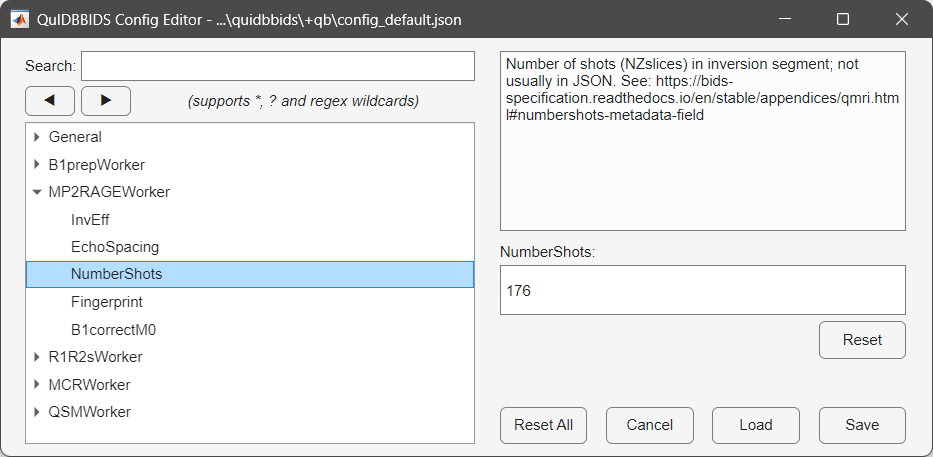
Left panel: The General QuIDBBIDS settings as well as the the settings for the individual workers. In this
example the user navigated to the MP2RAGEWorker and selected the NumerShots parameter. Right panel:
The description of the selected parameter (top) with a box to edit its current value of 176 (bottom).
SEPIA toolbox settings
Some workers in QuIDBBIDS use the SEPIA toolbox for QSM and relaxometry processing. SEPIA’s string settings represent menu items that define a set of processing options rather than a just single setting. When such a menu item is edited, a minimal native SEPIA GUI is launched, allowing the available options to be adjusted (see figure below). Settings that are not menu items can be edited directly in the standard way.
BIDS input selection settings
The BIDS input selection GUI allows users to select which BIDS entities (subjects, sessions, tasks,